pcf-canvas-apps — GitHub Copilot rule: what it does, how to install
Sets GitHub Copilot context for creating PCF controls in canvas apps. Helps handle manifest versioning, security warnings, and environment requirements.
.github/instructions/pcf-canvas-apps.instructions.mdWhat pcf-canvas-apps does
This instruction file guides GitHub Copilot when working with the Power Apps component framework. It activates for .ts, .tsx, .js, .json, .xml, .pcfproj, and .csproj files. Copilot uses it to follow CLI workflows and packaging requirements for canvas applications.
Activating code components requires a Power Apps license alongside system administrator privileges. The setting resides in the Power Apps Admin Center under product features. Model-driven apps have this enabled out of the box, but canvas environments need manual activation.
Because controls running inside Power Apps Studio access security tokens, importing untrusted solutions introduces direct data exposure risks. Runtime updates also demand care. Simply deleting and re-adding a control will not update it; you must increment the version field in the manifest and reopen the app.
What it helps with
- handle Power Apps Studio security constraints for custom controls
- update manifest versioning so canvas apps load modified code
- configure component framework settings in the Power Platform Admin Center
- structure TypeScript and
.pcfprojfiles for Microsoft Dataverse solutions
Example prompts for the agent
- Help me configure properties in this PCF manifest for a canvas app
- Why isn't Power Apps Studio picking up my code changes after rebuilding?
- Review this component manifest against Power Apps Studio security rules
How to install pcf-canvas-apps
Manually: put the files in place
.github/instructions/pcf-canvas-apps.instructions.mdThe applyTo field sets which files it applies to
Manually: put the files in place
.claude/rules/pcf-canvas-apps.mdThe paths frontmatter field limits the files: move applyTo from the source into paths
AGENTS.md
Codex reads AGENTS.md: paste the rule text there
Manually: put the files in place
.cursor/rules/pcf-canvas-apps.mdcFrontmatter: description, globs, alwaysApply. Move applyTo from the source into globs, or the rule will not attach on its own
Manually: put the files in place
.devin/rules/pcf-canvas-apps.mdManually: put the files in place
.clinerules/pcf-canvas-apps.mdStep by step, with commands for each platform: AGENTS.md vs CLAUDE.md: what they are and which one to use
Questions about pcf-canvas-apps
How to install pcf-canvas-apps in GitHub Copilot?
Save the instruction file to .github/instructions/pcf-canvas-apps.instructions.md in your project root. Copilot reads these instructions when you edit related source files.
What does pcf-canvas-apps do?
It gives Copilot background rules for developing code components for canvas apps. The file covers CLI commands, manifest structure, security checks, and solution import.
Why are component changes not showing up in canvas apps?
You must increment the version attribute in your control manifest file. Reopening the app in Power Apps Studio triggers the update prompt; re-adding the control without a version bump does nothing.
Source text
pcf-canvas-apps.instructions.md · MIT
---
description: 'Code components for canvas apps implementation, security, and configuration'
applyTo: '**/*.{ts,tsx,js,json,xml,pcfproj,csproj}'
---
# Code Components for Canvas Apps
Professional developers can use Power Apps component framework to create code components that can be used in their canvas apps. App makers can use Power Apps component framework to create, import, and add code components to canvas apps using [Microsoft Power Platform CLI](https://learn.microsoft.com/en-us/power-apps/developer/component-framework/get-powerapps-cli).
> **Note**: Certain APIs might not be available in canvas apps. We recommend that you check each API to determine where it's available.
## Security Considerations
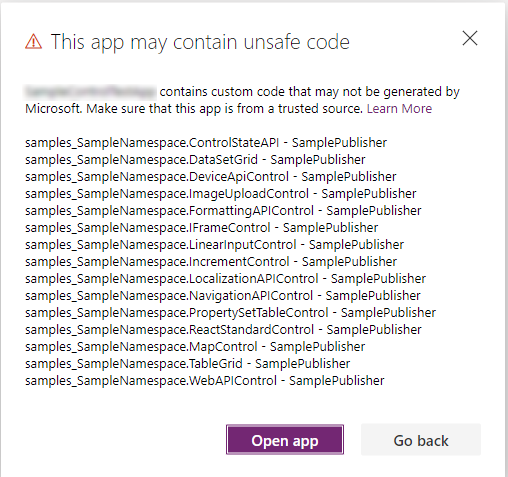
> **Warning**: Code components contain code that may not be generated by Microsoft and can potentially access security tokens and data when rendered in Power Apps Studio. When adding code components to a canvas app, make sure that the code component solutions are from a trusted source. This vulnerability does not exist when playing the canvas app.
### Security Warning in Power Apps Studio
When you open a canvas app that contains code components in Power Apps Studio, a warning message about potentially unsafe code appears. Code components in the Power Apps Studio environment have access to security tokens; hence only components from trusted sources should be opened.
**Best Practices:**
- Administrators and system customizers should review and validate all code components before importing them into an environment
- Make components available to makers only after validation
- The `Default` publisher is shown when you import code components by using an unmanaged solution or when you have used `pac pcf push` to install your code component
## Prerequisites
- A Power Apps license is required. More information: [Power Apps component framework licensing](https://learn.microsoft.com/en-us/power-apps/developer/component-framework/overview#licensing)
- System administrator privileges are required to enable the Power Apps component framework feature in the environment
## Enable the Power Apps Component Framework Feature
To add code components to an app, you need to enable the Power Apps component framework feature in each environment where you want to use them. By default, the Power Apps component feature is enabled for model-driven apps.
### Steps to Enable for Canvas Apps:
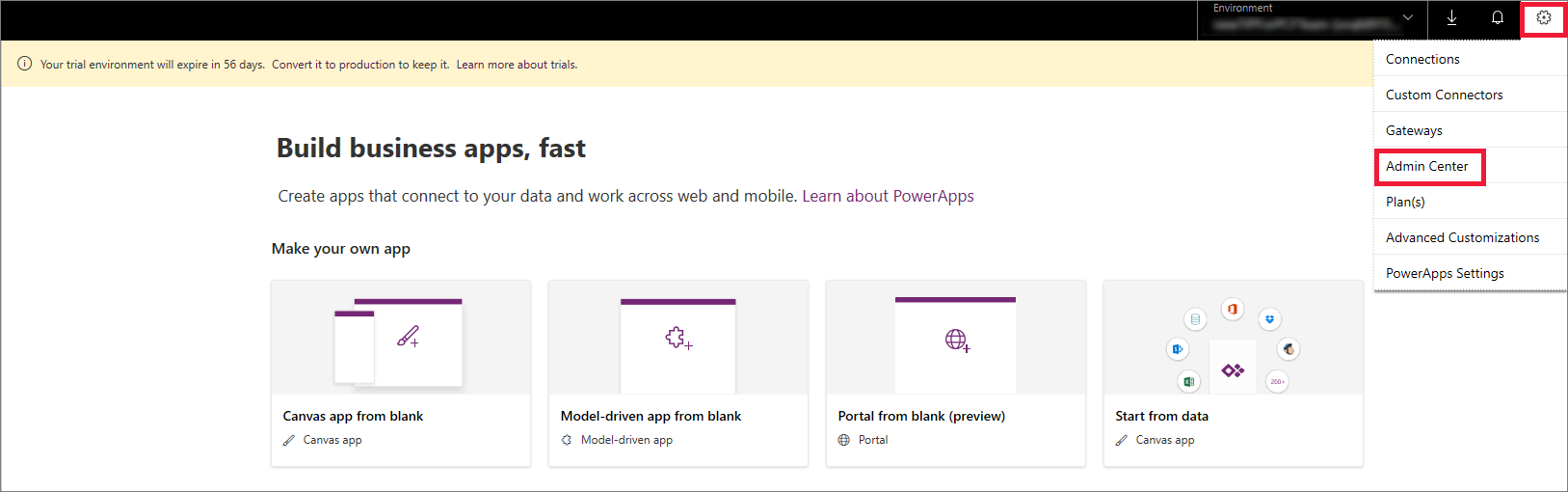
1. Sign in to [Power Apps](https://powerapps.microsoft.com/)
2. Select **Settings** , and then select **Admin Center**
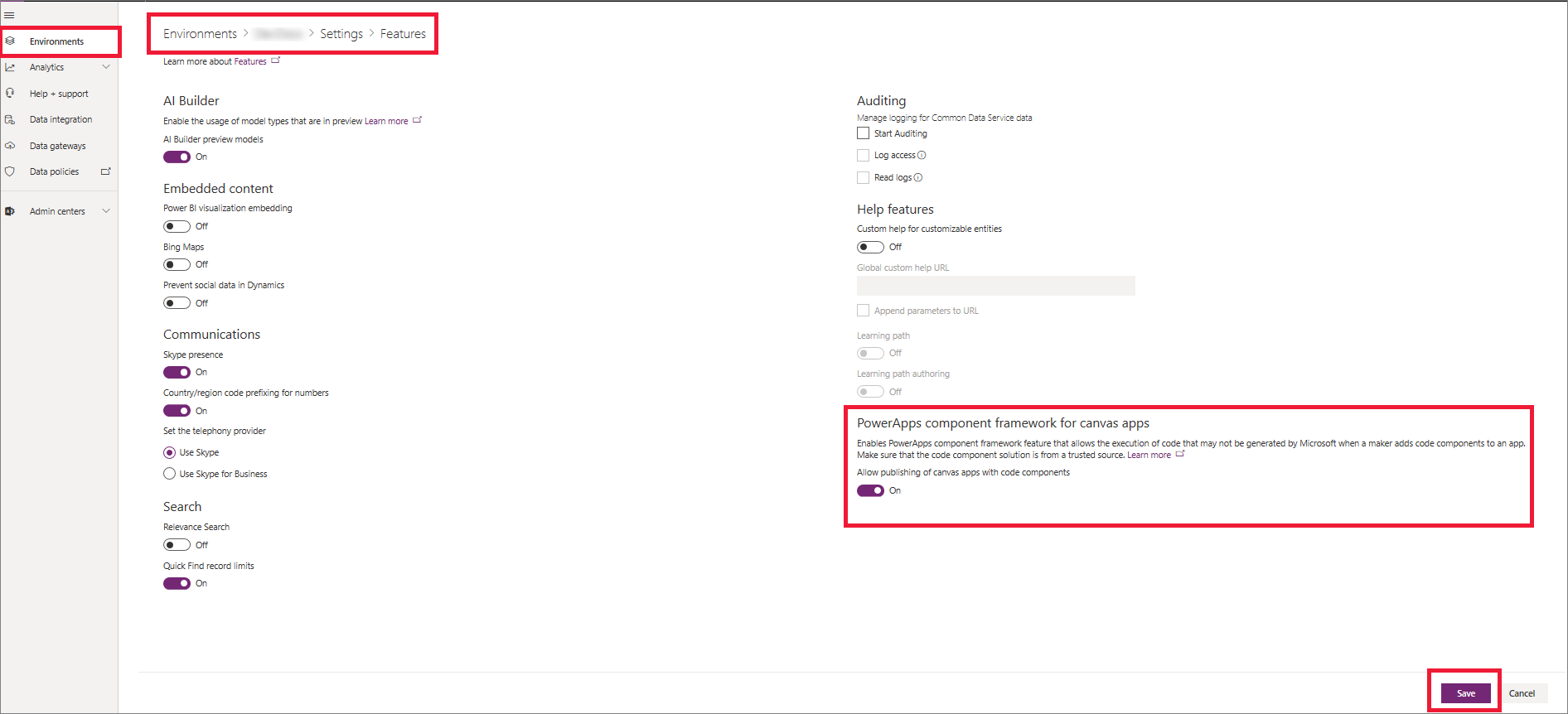
3. On the left pane, select **Environments**, select the environment where you want to enable this feature, and then select **Settings**
4. Expand **Product**, and select **Features**
5. From the list of available features, turn on **Power Apps component framework for canvas apps**, and then select **Save**
## Implementing Code Components
After you enable the Power Apps component framework feature in your environment, you can start implementing the logic for code components. For a step-by-step tutorial, go to [Create your first code component](https://learn.microsoft.com/en-us/power-apps/developer/component-framework/implementing-controls-using-typescript).
**Recommendation**: Check the [limitations](https://learn.microsoft.com/en-us/power-apps/developer/component-framework/limitations) of code components in canvas apps before starting implementation.
## Add Components to a Canvas App
1. Go to Power Apps Studio
2. Create a new canvas app, or edit an existing app to which you want to add the code component
> **Important**: Make sure the solution .zip file containing the code components has already been [imported](https://learn.microsoft.com/en-us/power-apps/maker/data-platform/import-update-export-solutions) into Microsoft Dataverse before you proceed to the next step.
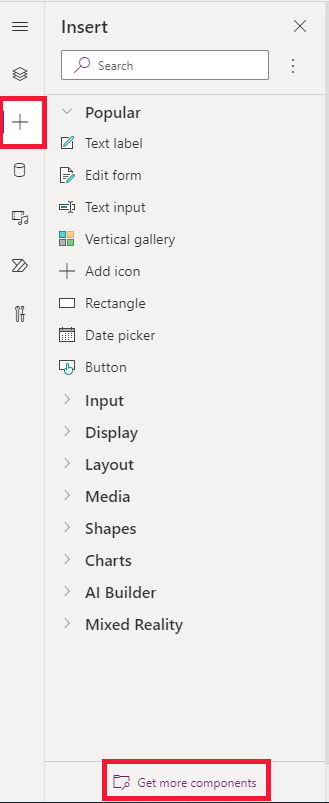
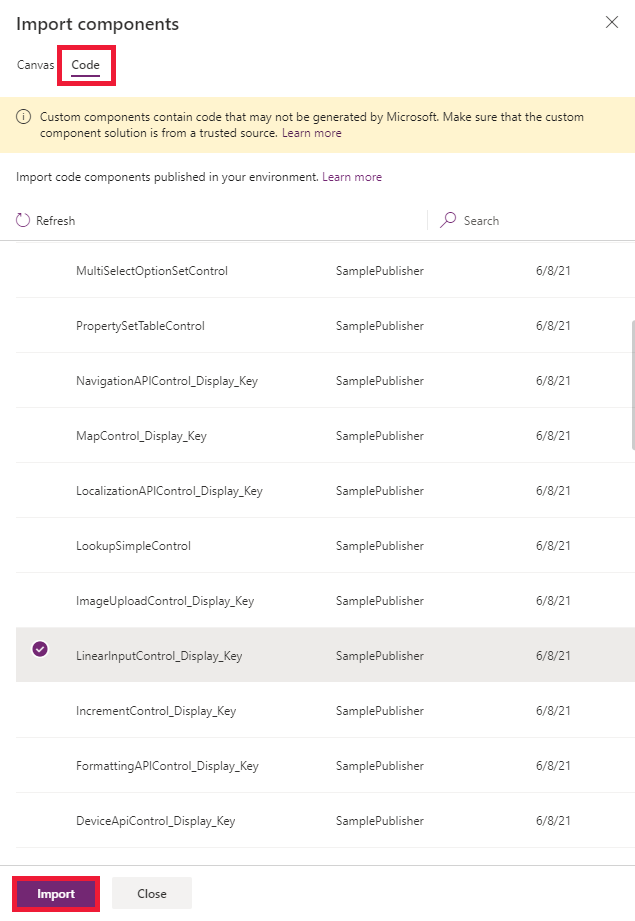
3. On the left pane, select **Add (+)**, and then select **Get more components**
4. Select the **Code** tab, select a component from the list, and then select **Import**
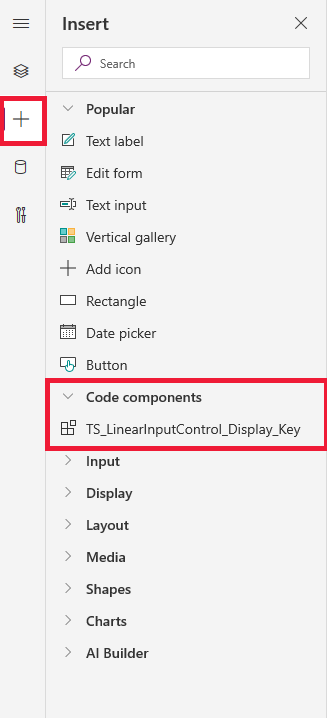
5. On the left pane, select **+**, expand **Code components**, and then select the component to add it to the app
> **Note**: You can also add components by selecting **Insert > Custom > Import component**. This option will be removed in a future release, so we suggest using the flow described above.
### Component Properties
On the Properties tab, you'll notice the code component properties are displayed.
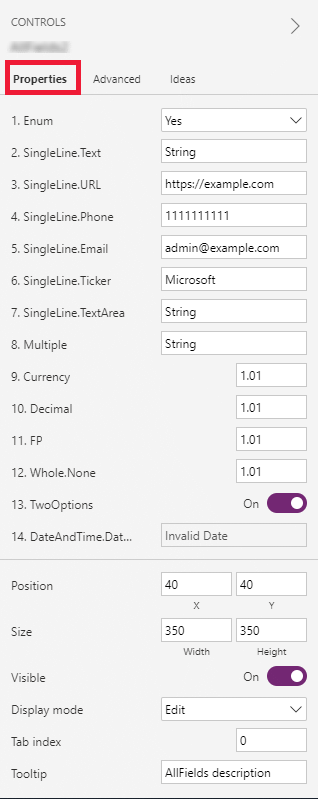
> **Note**: Existing code components can be re-imported by updating the code component's manifest version if you want the properties to be available in the default Properties tab. As before, the properties will continue to be available on the Advanced properties tab.
## Delete a Code Component from a Canvas App
1. Open the app where you've added the code component
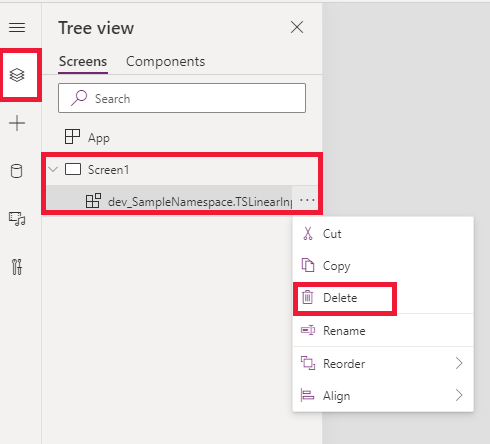
2. On the left pane, select **Tree view**, and then select the screen where you've added the code component
3. Next to the component, select **More (...)**, and then select **Delete**
4. Save the app to see the changes
## Update Existing Code Components
Whenever you update the code components and want to see the runtime changes, you need to change the `version` property in the manifest file. We recommend that you change the version of the component whenever you make changes.
> **Note**: Existing code components are updated only when the app is closed or reopened in Power Apps Studio. When you reopen the app, it asks you to update the code components. Simply deleting or adding code components back into the app won't update the components. Publish all the customizations in the updated solution first, otherwise updates made to the code component won't appear.
## See Also
- [Power Apps component framework overview](https://learn.microsoft.com/en-us/power-apps/developer/component-framework/overview)
- [Create your first code component](https://learn.microsoft.com/en-us/power-apps/developer/component-framework/implementing-controls-using-typescript)
- [Learn Power Apps component framework](https://learn.microsoft.com/en-us/training/paths/use-power-apps-component-framework)
© github · MIT · github/awesome-copilot


